

PurlShift · USER MANUAL
User manual
From your first settings to modulation connections and saving presets. Explore the figures and change values as you read.
- Actual interface Rendered by the plug-in
- Diagram A simplified view of how it works
- Calculator Enter values to see the result
01
Getting started #
PurlShift is an audio effect with two voices, each with pitch and delay controls. Choose Layered or Dual, then set left and right Pitch, Delay, Feedback and Mix. The LFO adds movement to settings; Bind puts several settings under one knob.
Requirements #
Available as Audio Unit and VST3 plug-ins for macOS. Use it in an audio effect slot in a DAW supporting these formats; it is not a standalone application.
| Input → output | Behavior |
|---|---|
| Mono → mono | Averages the processed left and right signals into one output channel. |
| Mono → stereo | Feeds the same mono input to left and right. |
| Stereo → stereo | Receives the left and right inputs separately. |
Use stereo output to hear effects that spread across left and right.
Your first sound #
Begin after installation and registration are complete.
- In your DAW, add PurlShift to a track playing audio.
- Check that POWER is ON and BYPASS is OFF.
- Click the preset button at the top (initially
DEFAULT) to open the browser. - Choose a preset in the FACTORY tab. It takes effect immediately, so you can compare presets while the track plays.
- Click CLOSE to close the browser.
- Use MASTER MIX to balance dry and processed sound, and MASTER OUT to set the final level.
Six steps to your first sound
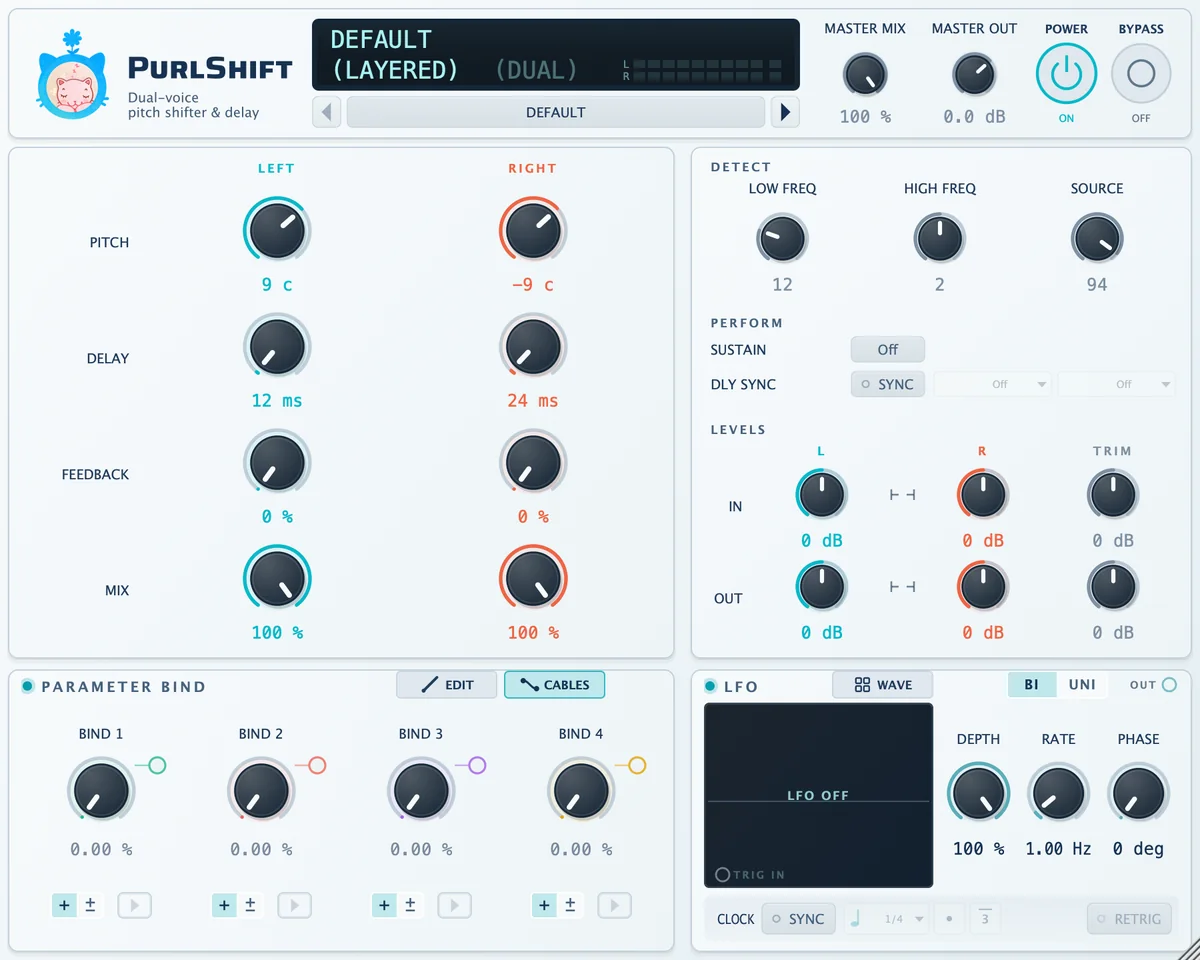
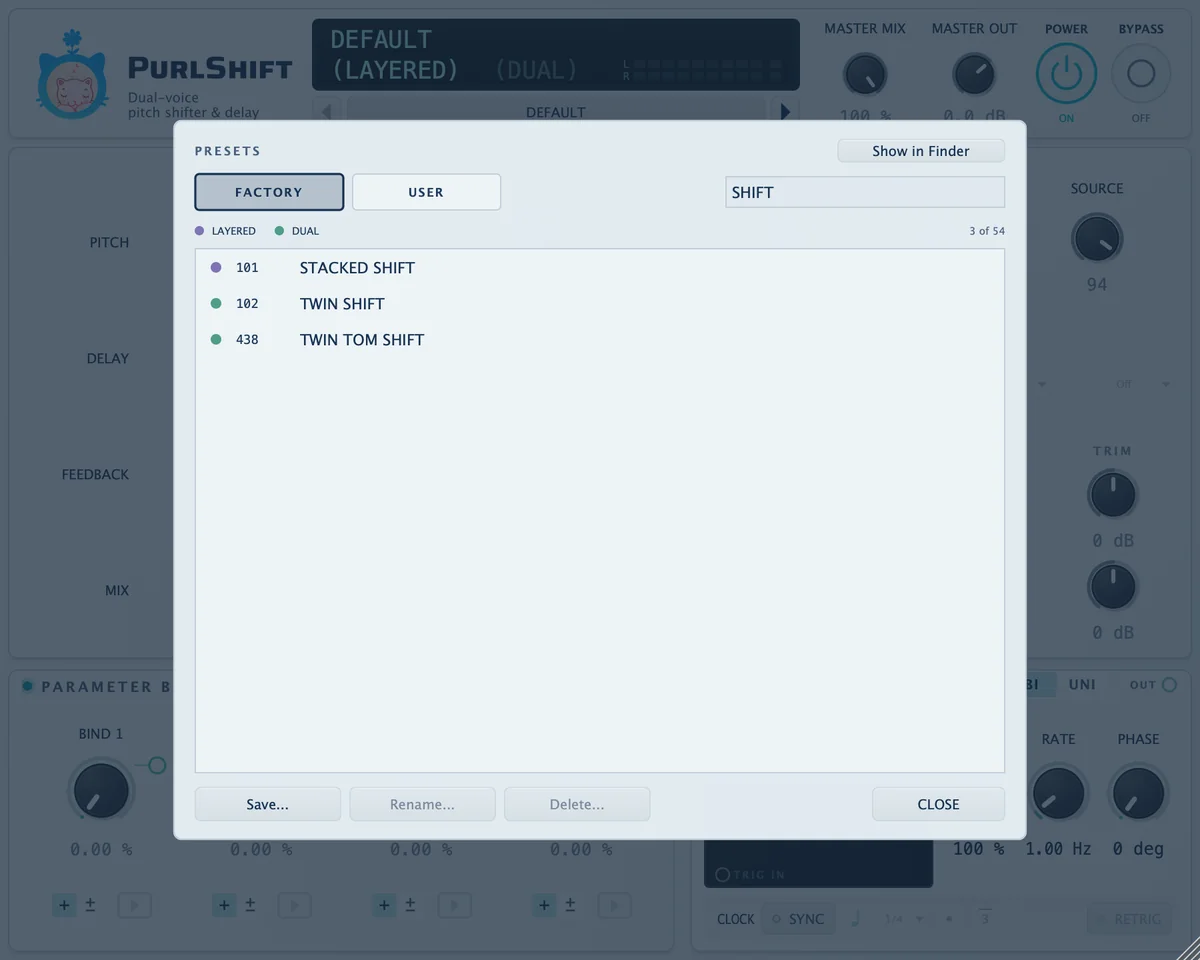
About this figure
The images for steps 4 and 5 show SHIFT entered in the search field.On an insert, adjust the amount of effect with MASTER MIX. For a separate effects return, set both MASTER MIX and left/right MIX to 100%, then control the amount sent from your DAW.
Original hardware and plug-in features #
PurlShift recreates two pitch algorithms from a 1980s studio rack processor. This manual calls that processor the “original hardware.” The interface combines its original parameters with features added for use as a plug-in. The two groups follow different operating rules.
| Type | Controls |
|---|---|
| Parameters from the original hardware | Algorithm (Layered/Dual); left/right PITCH, DELAY, FEEDBACK and MIX; DETECT (LOW FREQ, HIGH FREQ, SOURCE); SUSTAIN; LEVELS IN and OUT L/R; Bind 1–4 (value, polarity, name and ▶ trigger); LFO CLASSIC waveforms, DEPTH and RATE. |
| Ranges or rules changed from the hardware | Dual DELAY limit (500 ms → 1,000 ms); LOW FREQ limit (46 → 47); modulation connections (one source per parameter on the hardware → multiple connections to one target). |
| Features added by the plug-in | MASTER MIX, MASTER OUT, IN/OUT TRIM, L/R linking, POWER, BYPASS, DLY SYNC, LFO EXTENDED waveforms, PHASE, UNI, SYNC (division and OFFSET), RETRIG, CABLES display and preset browser. |
Original parameters follow the original hardware’s rules. In particular, distinguish these two pairs with similar names.
- Left/right MIX and MASTER MIX: the dry signal in left/right MIX has passed through the original hardware’s dry path, so it differs from the plug-in input. MASTER MIX uses the untouched input (chapter 4).
- IN/OUT L/R and TRIM: IN/OUT L/R follow the original level behavior. Positive gain stops increasing beyond a certain point; negative gain becomes silent before −48 dB. TRIM is plug-in gain that changes by exactly the displayed dB amount (chapter 8).
The original front panel master level and MIDI controller assignments are not provided. The master level is fixed to the setting of the reference unit used in development. Use DAW automation for external control.
02
Interface and basic operation #
Interface tour
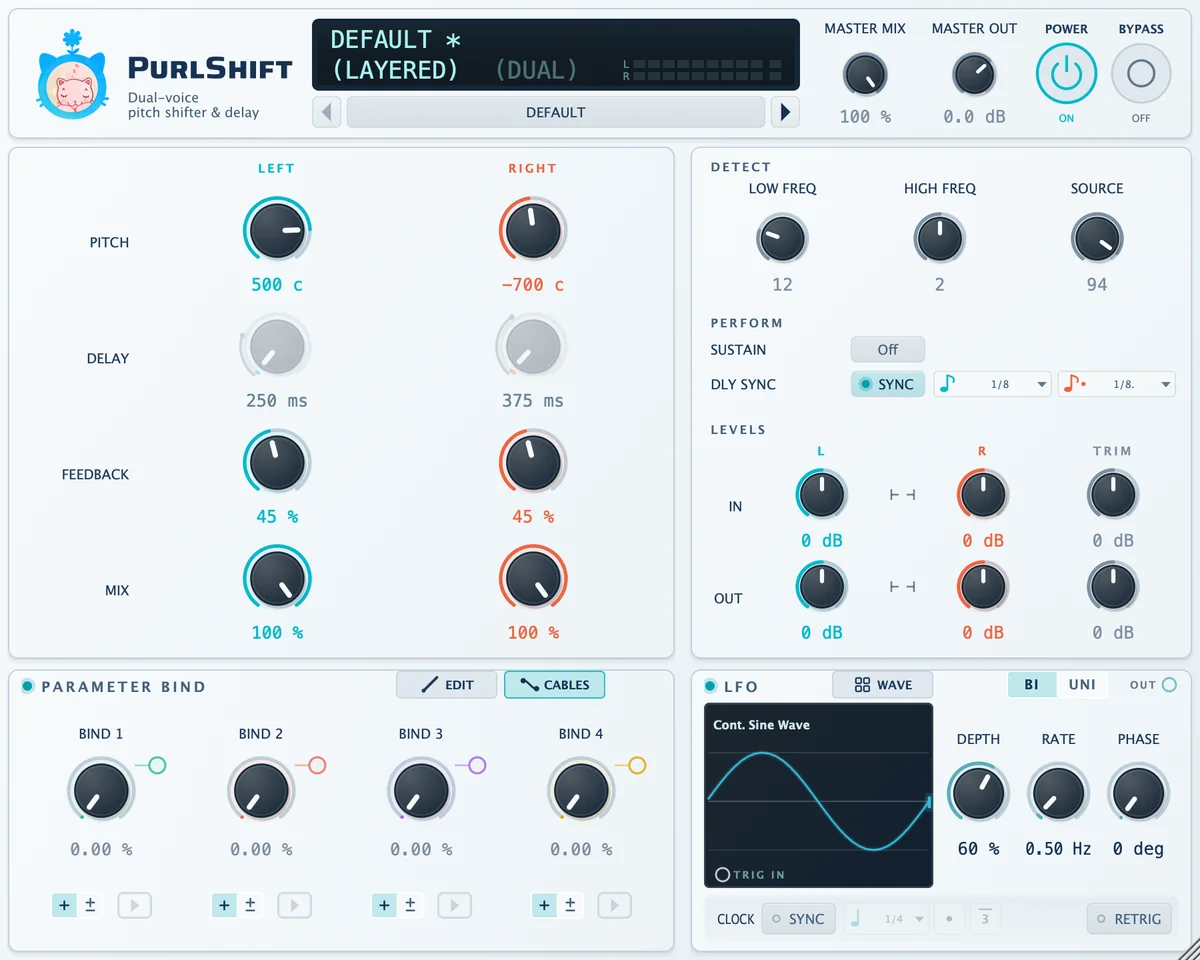
| Area | Purpose |
|---|---|
| Logo | Opens the information window: version, registered email and button to open the registration folder. |
| Display | Preset name, current control value and input meters. |
| (LAYERED) (DUAL) | Below the display. Click the dimmed name to change algorithms. |
| ◀ Preset button ▶ | Open the preset browser; previous/next preset. |
| MASTER MIX / MASTER OUT | Overall dry/processed balance and final output level. |
| POWER / BYPASS | Enable/disable processing; switch to dry input. |
| LEFT / RIGHT | Pitch, Delay, Feedback and Mix for both voices. |
| DETECT | Input pitch detection settings. |
| PERFORM | Sustain and delay tempo sync. |
| LEVELS | Input/output levels, TRIM and L/R linking. |
| PARAMETER BIND | Four Bind knobs, connection editing (EDIT) and cable display (CABLES). |
| LFO | Waveform, depth, rate, phase and tempo sync. |
Using the knobs #
Three ways to use a knob
| Action | Result |
|---|---|
| Drag up or right | Increases the value. Drag down or left to decrease it. |
| Shift + drag | Finer adjustment. Pitch moves in 1 c steps. |
| Mouse wheel | Adjusts the value. |
| Double-click a knob | Resets to its initial value. PITCH and DELAY reset to 0. |
| Double-click the number · right-click the knob | Enter a value directly. |
Reading a modulated knob #
On a knob connected to Bind or the LFO, the pointer shows the base value you set; the small dot on the outer ring shows the value currently in use. A colored modulation arc joins them. The number below shows the value in use, but direct entry edits the base value. Small colored dots at the upper right identify connected sources.
Check each connection’s BASE and TO values in the EDIT panel (chapter 6).
Display #
The upper line shows the preset name. While holding a knob and for two seconds after releasing it, it shows that knob’s name and value. The lower line contains the algorithm selector, (LAYERED) (DUAL), and L/R input meters. Chapter 9 explains the marks beside preset names.
Window size #
Drag the bottom-right corner to resize the window. Width ranges from 760 to 1,800 px with a fixed aspect ratio; the initial size is 900 × 720. Window size is saved in the DAW project.
03
Layered and Dual #
The main differences are how inputs are distributed and where feedback returns.
Signal flow in the two modes
LAYEREDA combined input, two voices
Both pitches come from a combined left/right input. Both feedback paths also merge into that input, so raising only FEEDBACK L produces repeats in the R voice too.
DUALTwo separate channels throughout
Left and right remain separate throughout. Each feedback path returns only to its own channel, so each repeat rises or falls by that channel’s PITCH setting.
Delay0–1,000 ms · same in both modes
About this figure
Only signal routing is shown. Chapter 8 includes the full path with LEVELS and MASTER MIX.| Layered | Dual | |
|---|---|---|
| Input | Combines left and right inputs and sends them to both voices. | Sends each input to its corresponding voice separately. |
| Feedback | Both voices’ repeats return to the common input. | Each voice’s repeats return to its own channel. |
| Dry signal in left/right MIX | That channel’s input | That channel’s input |
| Delay range | 0–1,000 ms per voice | 0–1,000 ms per channel |
Layered creates two pitches from one source. Mix in the dry signal for three-part harmony. With feedback, both voices return to the common input and split again, mixing their pitch intervals over successive repeats. Raising only L FEEDBACK also produces repeats in the R voice.
Dual handles left and right pitch and feedback independently. For example, one pitch delay can rise while the other falls.
Switching modes #
On the lower display line, click the dimmed option in (LAYERED)·(DUAL) to switch algorithms. Knob values stay unchanged; remaining repeats are cleared and processing starts again in the new mode. If the current preset belongs to the other mode, the display shows -- NO PRESET --.
Loading a preset differs from switching modes directly. Choosing a factory preset for another algorithm applies both its algorithm and its sound settings.
04
Pitch, delay, feedback and mix #
Pitch #
Sets how far to shift the input pitch. Set left and right independently from −2400 to +1200 cents in 1 c steps. 100 cents is a semitone; 1200 cents is an octave. Positive values appear without a plus sign, for example 700 c, -1200 c.
| Value | Display | Pitch change |
|---|---|---|
| 0 c | 0 c |
No pitch change |
| +700 c | 700 c |
A perfect fifth up |
| −1200 c | -1200 c |
One octave down |
| +9 c / −9 c | 9 c / -9 c |
Small opposite shifts on left and right (initial values). |
Pitch calculator — cents to intervals
- Display
- 700 c
- Interval
- A perfect fifth up Up 7 semitones
- Semitones
- +7
- Frequency ratio · equal-temperament theory
- ×1.4983
- Example · A4 at 440 Hz input
- 659.26 Hz E5
About this figure
Interval names and frequency ratios are theoretical values calculated in equal temperament.Pitch shifts by the selected interval. It does not analyze the song’s key or automatically choose harmony notes.
Delay #
Sets each voice’s delay time. In both modes, the range is 0~1,000 ms in 1 ms steps. The original hardware’s Dual mode was limited to 500 ms; the plug-in extends it to 1,000 ms. Short values create timing differences from the dry signal; longer values separate the repeats.
In PERFORM, open DLY SYNC, enable SYNC and select L/R note values to set delay times from the DAW tempo.
- There are 13 note choices:
1/2and1/4·1/8·1/16·1/32in straight, dotted (.) and triplet (T) forms. - Timing depends on tempo and note value, not time signature. At 120 BPM,
1/8.is 375 ms. The formula is in the calculator below. - Notes exceeding 1,000 ms at the current tempo are grayed out and unavailable. At 120 BPM, the longest available note is
1/2(1,000 ms). - While synced, that channel’s DELAY knob is dimmed and locked. Its number shows the time currently in use.
- Set a note chip to
Offto return that channel to free adjustment with the DELAY knob. - If a selected note exceeds 1,000 ms after the tempo slows, the delay stops at 1,000 ms and a ceiling indicator appears on the chip.
- Tempo comes from the DAW. If unavailable, the last received tempo is used; the initial fallback is 120 BPM.
DLY SYNC — note lengths at different tempos
Delay time by note at 120 BPM
- L chip
- 250 ms 1/8
- R chip
- 375 ms 1/8.
- One quarter-note beat
- 500 ms 120 BPM
About this figure
Availability is checked before rounding; a value exactly at the limit is allowed. Bars follow the order of the plug-in’s note chips.Tempo sync sets the delay parameter. It does not remove the delay inherent in pitch processing.
Feedback #
The amount of processed sound sent back to the voice input. The range is 0~100%. At 0%, no signal returns. Increasing it produces more repeats. With Pitch set, each repeat shifts by that interval again.
In Layered, both voices’ repeats merge at the common input and split into both voices again, creating combinations of the two intervals. In Dual, each channel repeats only within itself.
When repeats return, and at what pitch
Layered · First repeat: 250 ms 500 c, 375 ms −700 c. Second repeat: 500 ms 1000 c, 625 ms −200 c (×2), 750 ms −1400 c. Purple dots are repeats that have passed through both L and R voices.
About this figure
Shows up to the fifth repeat. FEEDBACK is represented only as on or off; in use, higher values make repeats last longer.Feedback branches from the processed sound before left/right MIX. Even at MIX 0%, repeats continue building within the voices; raising MIX makes them audible.
Left/right Mix and Master Mix #
Left/right MIX are the original hardware’s mixers; the upper MASTER MIX is a mixer added by the plug-in. Both blend dry and processed sound, but their dry signals differ.
Left/right MIX sets the dry/processed balance at each voice output. At 0%, you hear that channel’s dry signal; at 100%, that voice’s processed sound. This dry signal is not the untouched plug-in input: it follows the original hardware’s dry path, bypassing its processing section on the way to the output. Therefore, MIX 0% does not exactly match the original input.
- IN/OUT L/R and TRIM apply.
- The original input and output circuitry adds its characteristics: a slight high-frequency reduction, very small distortion and filtering of very low frequencies, including DC.
- If the signal after IN level and IN TRIM exceeds 0 dBFS, it clips along with the processed sound.
- At session sample rates other than 44.1 kHz, this entire path is converted to 44.1 kHz and back within the plug-in, filtering components above approximately 20 kHz.
The upper MASTER MIX balances the plug-in’s processed result against its untouched input, from 0 to 100% in 1% steps. This dry signal bypasses all the stages above and is delayed only by the reported latency to align it with the processed sound. Changes to LEVELS or TRIM therefore also affect the dry/processed balance at MASTER MIX.
| Left/right MIX 0% (MASTER MIX 100%) | MASTER MIX 0% | BYPASS | |
|---|---|---|---|
| Dry signal heard | Through the original hardware’s dry path | Untouched plug-in input | Untouched plug-in input |
| IN·OUT L/R, TRIM | Applied | Not applied | Not applied |
| MASTER OUT | Applied | Applied | Not applied |
Use MASTER MIX for general effect blending. Use left/right MIX to set separate dry balances or hear the original hardware’s dry path. See chapter 8 for the signal routing diagram.
05
Adding movement with the LFO #
The LFO moves connected parameters according to the selected waveform. Some waveforms repeat continuously; others act when triggered.
The LFO is the original hardware’s function generator. CLASSIC waveforms, DEPTH, RATE and triggering come from the hardware. EXTENDED waveforms, PHASE, UNI, SYNC (division, dotted/triplet and OFFSET) and RETRIG are plug-in additions.
LFO → L Pitch

About this figure
Cont. Sine Wave (DEPTH 60%, RATE 0.50 Hz) is connected to left PITCH, and Bind 1 to right DELAY. This is the same recording used on the product page.Connecting the LFO to pitch #
- Check that the LEDs beside the PARAMETER BIND and LFO headings are lit. Click a heading to enable or disable its section.
- Click WAVE and choose
Cont. Sine Wave. Selecting a tile also closes the panel. - With CABLES enabled, drag the OUT ring at the upper right of the LFO to the left PITCH knob.
- Open EDIT and check that a SOURCE
LFO, TARGETL Pitchrow has appeared. Set TO to define the modulation range. - Use LFO RATE for speed and DEPTH for depth.
TO on an LFO connection reflects the current DEPTH. Changing DEPTH later changes the actual movement proportionally. TO cannot be set while DEPTH is 0%.
LFO controls #
| Controls | Meaning |
|---|---|
| WAVE | Opens the waveform selection panel. Selecting Turned Off makes the waveform display show LFO OFF. |
| DEPTH | Modulation depth, 0–100%. |
| RATE | Free-running rate, 0.00–20.00 Hz. |
| PHASE | Phase, 0–359 deg. Adjusting it during a cycle shifts the waveform immediately. |
| BI / UNI | Bipolar movement around the base value / unipolar movement to one side. |
| OUT | Cable source. |
| TRIG IN | Trigger input. When connected, it includes the Bind number, for example TRIG IN 1. |
| CLOCK SYNC | Sets the rate from the DAW tempo. |
| Division · ● · 3 | SYNC note length, dotted and triplet modifiers. |
| OFFSET | Cycle multiplier shown in place of RATE while SYNC is on, 0.50–2.00×. |
| RETRIG | Restarts the LFO when DAW playback starts or the play position jumps backward. |
Waveforms that inherently move to one side of center, as shown in the WAVE preview, also move to one side in BI. In UNI, use EDIT’s invert button to choose the direction.
Syncing to tempo #
With SYNC on, OFFSET replaces RATE. Speed is determined by the division (4 bar ~ 1/32), dotted/triplet modifiers and OFFSET. At 1.00×, the selected length is unchanged; 0.50× halves the period for twice the speed; 2.00× doubles it for half the speed. Bar divisions follow the DAW time signature. Rate never exceeds 20 Hz.
LFO rate calculator — RATE and CLOCK SYNC
- Rate · display value
- 2.00 Hz Shown on the CLOCK line during SYNC.
- One cycle
- 0.500 seconds 500 ms
- Quarter notes per cycle
- 1 1/4(1) × 1 × 1.00
About this figure
The animation uses a sine wave connected to L Pitch (BASE 0 c, TO 400 c). Above 6 Hz, it is displayed at a slower rate.During playback, continuous waveforms align their phase to the song’s bar grid, so RETRIG has effectively no effect while synced. When stopped, the LFO runs freely at the same rate and the Hz display dims.
Disabling the LFO section preserves the selected waveform. The LFO keeps cycling invisibly while disabled, so reenabling it resumes at its current position rather than restarting.
Waveforms #
The WAVE panel contains 39 entries across CLASSIC and EXTENDED, including Turned Off. Turned Off is the first CLASSIC tile. CLASSIC has the original hardware’s 20 tiles (Turned Off and 19 waveforms); EXTENDED adds 19 plug-in waveforms. The symbol at the top right of a tile identifies its behavior.
LFO WAVEFORM panel
CLASSICTurned Off and 19 waveforms · 7 continuous · 11 one-shot · 1 toggle
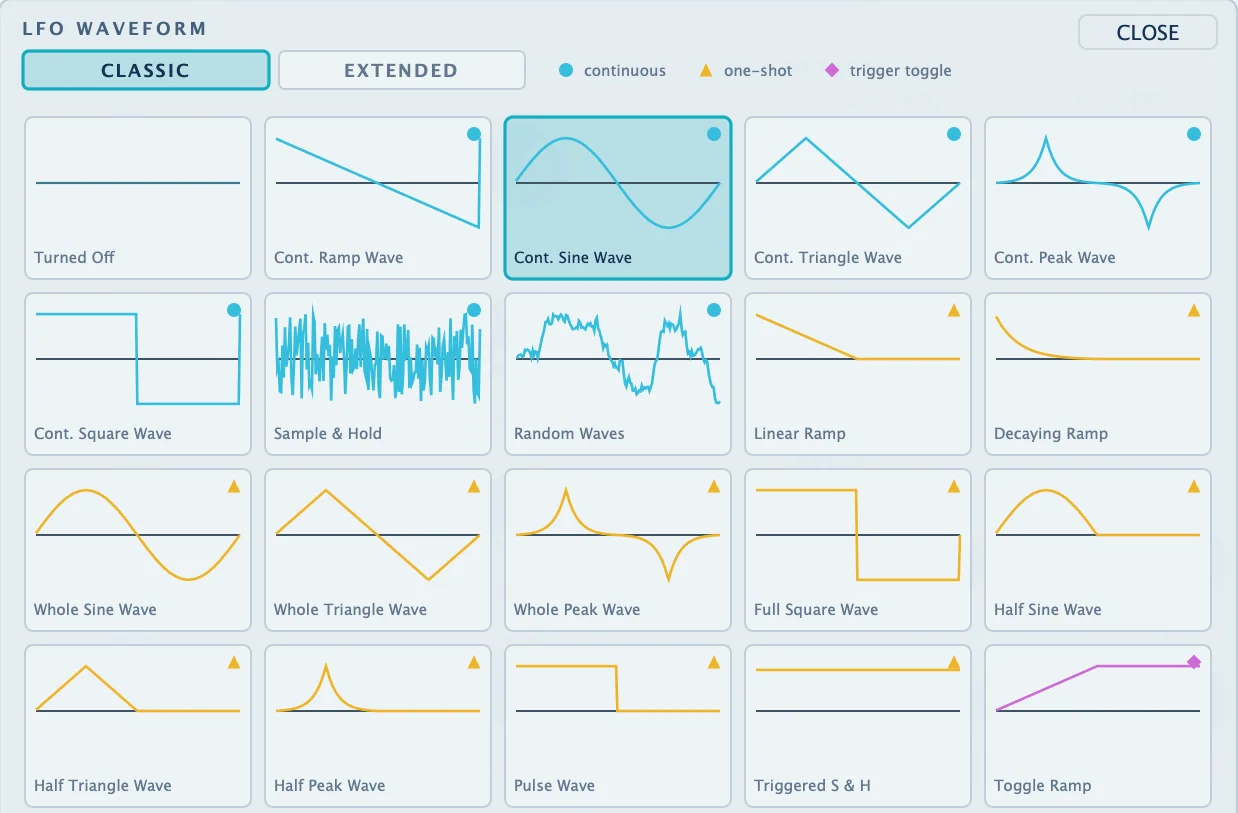
EXTENDED19 extended waveforms beginning with Ext · 18 continuous · 1 toggle
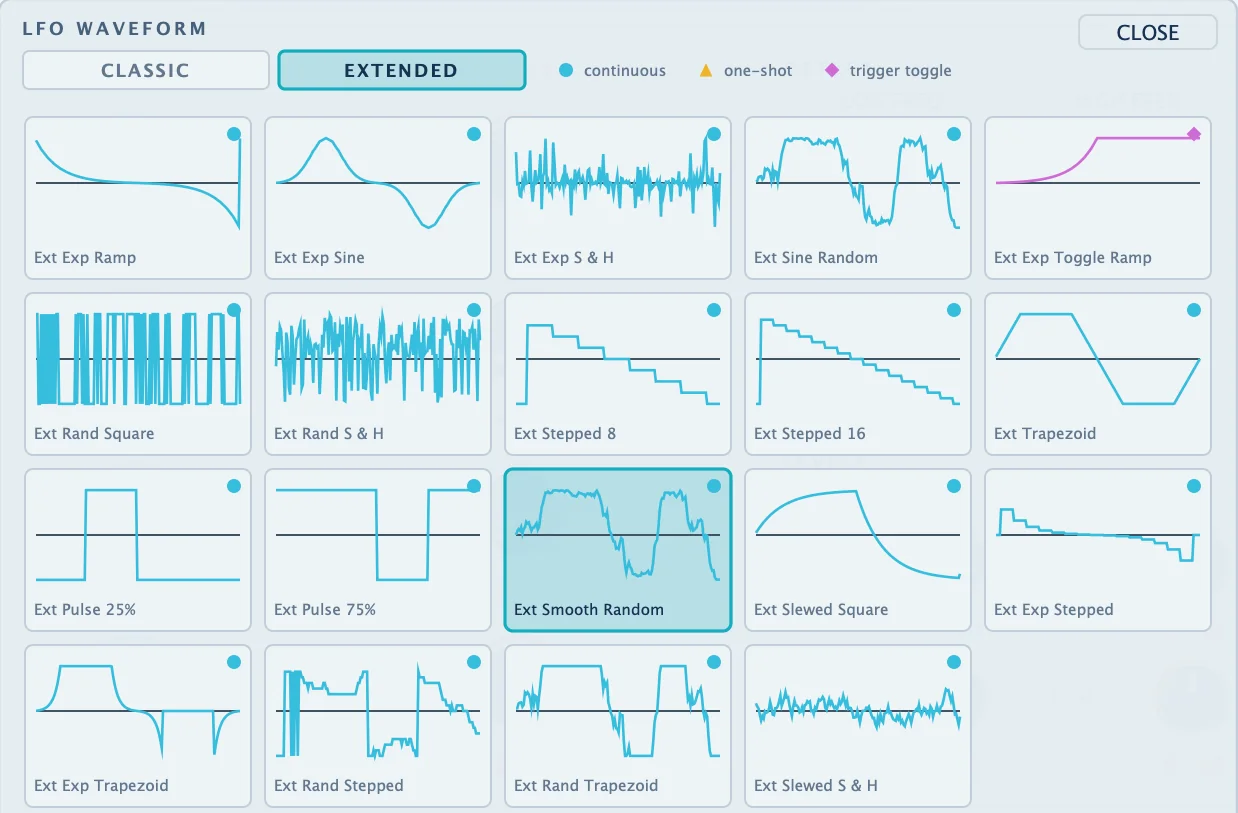
| Symbol · behavior | CLASSIC | EXTENDED |
|---|---|---|
| Circle continuous — repeats continuously. | 7 — Cont. Ramp Wave, Cont. Sine Wave, Cont. Triangle Wave, Cont. Peak Wave, Cont. Square Wave, Sample & Hold, Random Waves. | 18 — Ext Exp Ramp, Ext Exp Sine, Ext Exp S & H, Ext Sine Random, Ext Rand Square, Ext Rand S & H, Ext Stepped 8, Ext Stepped 16, Ext Trapezoid, Ext Pulse 25%, Ext Pulse 75%, Ext Smooth Random, Ext Slewed Square, Ext Exp Stepped, Ext Rand Stepped, Ext Rand Trapezoid, Ext Slewed S & H. |
| Triangle one-shot — runs once per trigger. Selecting it alone does not start it. | 11 — Linear Ramp, Decaying Ramp, Whole Sine Wave, Whole Triangle Wave, Whole Peak Wave, Full Square Wave, Half Sine Wave, Half Triangle Wave, Half Peak Wave, Pulse Wave, Triggered S & H. | None |
| Diamond trigger toggle — changes direction with each trigger. | 1 — Toggle Ramp | 1 — Ext Exp Toggle Ramp |
The previews show the basic shapes without PHASE or UNI. The LFO section’s waveform display includes those settings.
Trigger #
One-shot and trigger-toggle waveforms move when triggered. A trigger also restarts continuous waveforms.
- Drag the TRIG IN ring at the lower left of the waveform display to a Bind ▶ button. You can also drag from a Bind connection ring to TRIG IN.
- Each press of that Bind’s ▶ button sends a trigger.
After a trigger, the short bar on the right edge of the waveform display—the current LFO output—moves along the waveform, and connected knobs follow it. The waveform drawing itself does not change.
▶ Trigger and LFO · L PITCH
Whole Sine Wave A trigger runs one cycle, then stops at BASE (0 c).
lfo triggered message normally shown when pressing ▶ is absent from this recording.About this figure
Settings: LFO → L Pitch (BASE 0 c, TO 700 c, DEPTH 100%, RATE 1.00 Hz); Bind 1 → LFO Trigger (dashed cable). Triggers were sent through the sameLFO Trigger parameter used by the ▶ button. The graph was drawn from the displayed L PITCH value read in each recording frame, 40.6 ms apart.Only one trigger connection is allowed. Connecting another Bind transfers it to that Bind. Right-click the ▶ button to disconnect. In EDIT it appears as a SOURCE Bind n, TARGET LFO Trigger row and occupies one of the 12 slots. This differs from the continuous modulation produced by turning a Bind knob.
With RETRIG on, DAW playback start and backward jumps caused by looping or rewinding also trigger the LFO. RETRIG is disabled when WAVE is Turned Off. In DAW automation, LFO Trigger sends one trigger on every value change, even without a Bind connection.
The LFO cannot connect to its own DEPTH, RATE, PHASE or TRIG IN. Use Bind to control these.
06
Controlling multiple settings with Bind #
Bind provides four macro knobs that move several connected parameters together. Each connection defines its direction and amount. In your DAW, you only need to automate the Bind knob.
Bind 1–4 correspond to the original hardware’s four soft knobs. Polarity (+·±), naming and ▶ triggering also come from the hardware. It allowed one source per parameter and could use MIDI controllers as sources. The plug-in uses only Bind 1–4 and the LFO, and allows multiple connections to one target (see Connection rules).
Bind 1 → R Pitch · R Delay · R Feedback

About this figure
Dual. As Bind 1 moves from 0 to 100%: PITCH 0 → −700 c, DELAY 24 → 324 ms, FEEDBACK 0 → 55%. The-> 3 targets text beneath the knob summarizes its targets. This is the same recording used on the product page.Controlling Pitch and Delay with one knob #
- Set Bind 1 polarity to
+and its value to 0%. Double-clicking the knob returns it to 0%. - Check that CABLES is enabled.
- Drag the colored ring at the upper right of BIND 1 to the right PITCH knob. Dragging the knob itself changes its value instead of making a connection.
- Drag from the same ring to the right DELAY knob.
- Open EDIT and set BASE and TO for both connections.
- Turn Bind 1 and check that both parameters move together.
While dragging, only available target knobs are highlighted, and the display shows guidance such as drop on a knob.
BASE and TO #
BASE is the target knob’s own value. Editing BASE also turns the knob on the main interface and affects other connections to it. TO is the destination when the source reaches its maximum.
+polarity: Bind 0% gives BASE, and 100% gives TO. Between them, movement is linear in display units (c, ms or %).±polarity: the knob reads −100 to +100%, with BASE at the central 0%. At +100% it reaches TO; at −100% it moves the same distance to the opposite side of BASE.
BASE / TO calculator — three parameters, one Bind knob
About this figure
Calculated in display units (c, ms, %) and shown rounded to integers. This Dual example connects Bind 1 to right PITCH, DELAY and FEEDBACK, using the same values as the product page.Changing BASE shifts the modulation range too, so it is easier to set BASE first, then adjust TO. If several connections share a target, their amounts are added in EDIT row order, clamping to the target’s range after each addition.
When changing polarity, a knob at neutral (+ at 0%, ± at center) moves to the new polarity’s neutral point. Double-click the knob to return to neutral. The line below summarizes its targets, for example -> L Pitch, -> L/R Pitch, -> 3 targets. With no connections, the value is dimmed.
EDIT panel #
EDIT panel
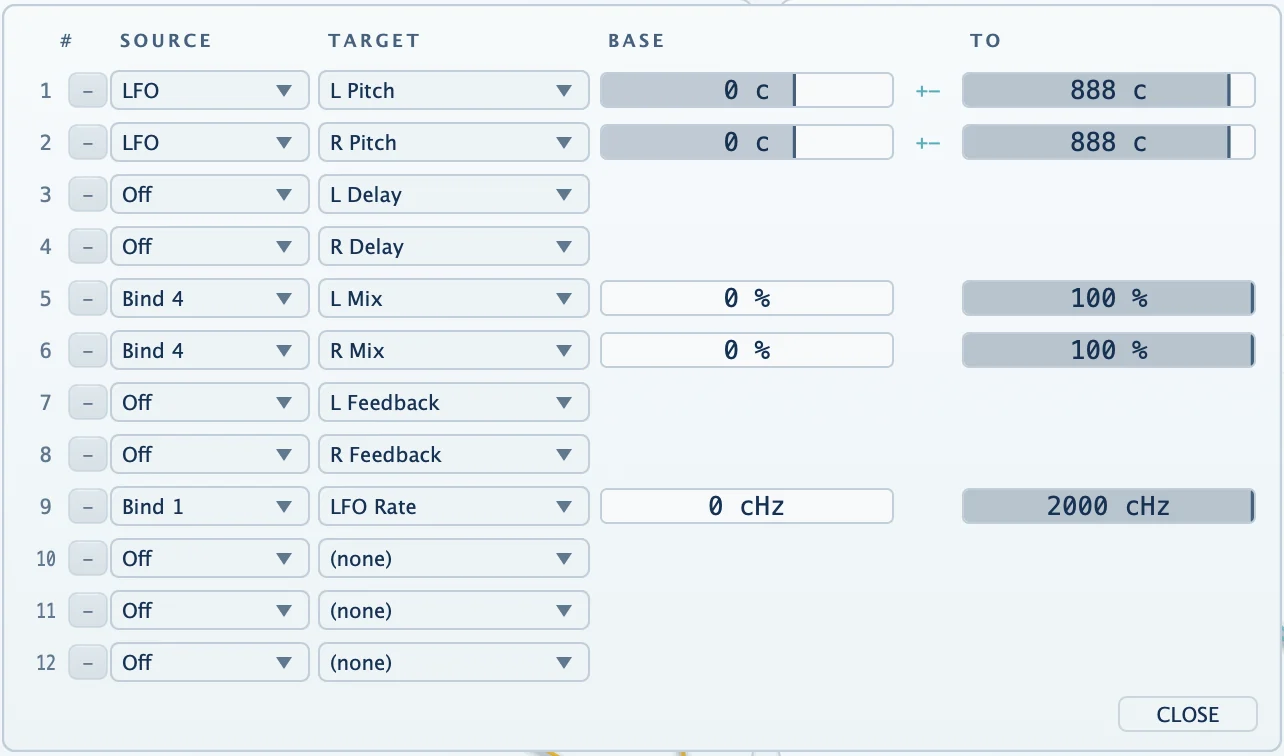
About this figure
Factory preset 191 RAY BLASTER. The LFO row’s TO of 888 c reflects the current DEPTH; the LFO RATE row uses cHz.| Item | Capabilities |
|---|---|
| # | Connection number, 1–12. |
Invert button (-) |
Reverses modulation direction. Has no effect if the amount is zero. |
| SOURCE | The source of movement: Bind 1 ~ Bind 4 or LFO |
| TARGET | The parameter to move. |
| BASE | The target knob’s base value. |
| Indicators | +- Bidirectional; ! shared with another connection (value shown assumes this row alone); x inactive combination. |
| TO | Value reached at the source’s maximum. |
To create a connection in EDIT, choose SOURCE before TARGET so the default amount is applied. In the opposite order the amount is zero, so set TO manually. LFO RATE BASE and TO use cHz (100 cHz = 1 Hz). While synced, Bind modulation of LFO RATE moves OFFSET, and that row’s TO is not editable.
Cables #
Reading the cables
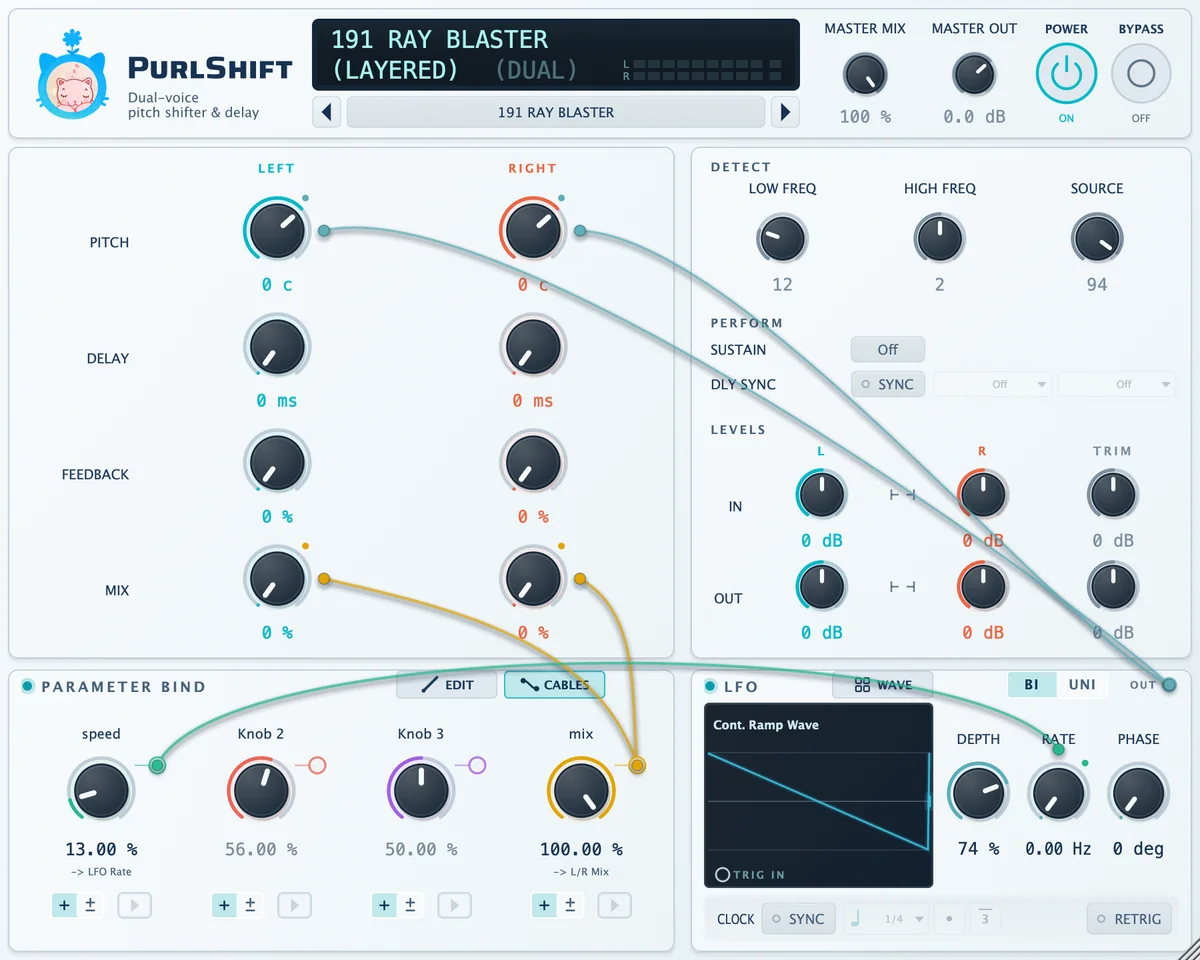
Bind 1Bind 2Bind 3Bind 4LFOTrigger
About this figure
Factory preset 191 RAY BLASTER. Connections: LFO → L/R PITCH; Bind 1 (named speed) → LFO RATE; Bind 4 (named mix) → L/R MIX.CABLES toggles cable visibility. Hidden connections keep modulating, but cannot be added or removed by cable dragging while hidden. CABLES returns to on when the editor window is reopened.
Click a cable or its target plug without dragging to disconnect immediately. The display shows disconnect. Dragging from the same source to the same knob again also disconnects. Clicking a source ring (Bind, OUT or TRIG IN) starts a new connection instead.
Hovering over a cable shows its connection and range in the display, for example bind 1 -> L Pitch. Color identifies the source: Bind 1 green, Bind 2 red, Bind 3 purple, Bind 4 amber, LFO teal. Thickness follows modulation amount; LFO cables pulse with the output; trigger cables are dashed.
Connection rules #
There are up to 12 connections, including trigger connections. Targets are the original modulatable left/right Pitch, Delay, Feedback and Mix, plus LFO DEPTH, RATE and TRIG IN, and the added LFO PHASE. LFO DEPTH, RATE and PHASE each accept only one Bind. MASTER MIX, MASTER OUT, DETECT, SUSTAIN, LEVELS/TRIM and DLY SYNC are not targets.
Double-click a Bind name to rename it for its purpose. Leaving it blank restores BIND n. The DAW automation name remains Bind 1 ~ Bind 4.
Click the PARAMETER BIND heading to disable all Bind and LFO modulation. Knobs then sound at their base values. Connections, amounts and Bind positions remain, ready to resume when reenabled.
07
Detection settings and Sustain #
DETECT #
These original hardware Expert parameters control how pitch is detected in the input. LOW FREQ and HIGH FREQ are not ordinary tone-shaping EQ controls.
| Item | Range | Initial value | Role |
|---|---|---|---|
| LOW FREQ | 0~47 | 12 | Lower end of the detection band. |
| HIGH FREQ | 0~4 | 2 | Upper end of the detection band. |
| SOURCE | 0~100 | 94 | Criterion for detecting the input signal’s period. |
The numbers below the knobs are step indices, not Hz. While turning a knob, the upper display shows the current detection band in Hz. Changing HIGH FREQ also moves the lower edge. LOW FREQ step 47 is a plug-in addition; the original editing limit was 46.
Start with the preset settings. If needed, loop the same passage and compare one change at a time. SOURCE is not a quality control where higher is always better. DETECT can be automated in the DAW but cannot be a Bind or LFO target.
Sustain #
An original performance feature that captures and repeats the incoming sound. Press SUSTAIN to toggle it. When enabled, the delay memory freezes and both voices keep reading and repeating its contents. New input no longer enters the memory.
What SUSTAIN does
- Write head Writes new input into memory.
- L/R read heads The two voices read the memory.
Off New input continually updates the memory, and both voices read the changing contents.
About this figure
Memory length and reading details are omitted. Rotation speeds are illustrative.Sustain stays enabled when changing presets. If old sound repeats instead of responding to new input, check SUSTAIN first. It can be automated. Its on/off state is saved in the project, but the frozen sound itself is not.
08
Levels and bypass #
LEVELS #
The IN and OUT row L/R knobs are the original left/right input and output levels. They were saved per preset on the hardware and are saved in plug-in presets too. Although the display spans −48 to +48 dB, original level rules mean the numbers do not directly equal the gain change in dB.
The hardware added these values to the master level set with the front panel LEVELS button. The sum could not exceed 0 dB, and at −48 dB it became off. The plug-in has no master level knob; it is fixed to the reference unit’s master setting. The resulting behavior is as follows.
- Positive values: gain rises only to a certain point and then stops. The limit differs between IN and OUT.
- Negative values: near 0 dB, attenuation is close to the display, but farther down it diverges and develops steps of several dB.
- Silence: the signal becomes completely silent (−∞) before the display reaches −48 dB. Read −48 dB as “off,” not an attenuation amount. The silence threshold differs between IN and OUT.
IN/OUT L/R affect processed sound and the dry signal in left/right MIX. Input meters show the signal after IN level and IN TRIM.
Loading a factory preset restores its saved IN/OUT L/R values. Most are 0 dB, but some differ. For example, 981 OTHER MONO DLY sets OUT R to −48 dB, muting the right output.
TRIM is a plug-in feature absent from the original hardware. IN adjusts both input channels before processing; OUT adjusts both output channels afterward, in 1 dB steps over −24 to +24 dB. It is pure gain, independent of the original level rules, so it follows the displayed dB exactly without limits or steps. Use TRIM for precise level adjustment.
Enable the link button (⊢⊣) between L and R in either row to move both knobs together, preserving their difference, when dragging or scrolling. If either reaches its limit, both stop. Direct entry or automation changes only one side. Links are off initially.
MASTER OUT #
A plug-in feature setting final level after MASTER MIX. Range: −24.0 to +12.0 dB in 0.1 dB steps. Use MASTER OUT to adjust overall level while preserving the dry/processed balance.
The signal path #
Input to output — the path you hear
MASTER MIX 100% · left/right MIX 100%: processed voice output passes through OUT level/TRIM and MASTER OUT.
About this figure
Routing only: stage values and transition crossfades are omitted. TRIM is a plug-in addition, but is drawn inside the dashed area because it occupies the original master level position.POWER and BYPASS #
| POWER | BYPASS | |
|---|---|---|
| Purpose | Equivalent to disabling the plug-in in the DAW. | Switches to the dry input within the plug-in. |
| Automation name | Bypass (on/off meaning is reversed from the interface). |
Dry |
| When toggled | If the DAW stopped processing, remaining repeats are cleared when reenabled. | Processing continues; only the output crossfades over 10 ms. Turning bypass off resumes the existing repeats. |
BYPASS also differs from MASTER MIX 0%. MASTER OUT affects the dry signal at MASTER MIX 0%, but not the bypassed signal.
POWER and BYPASS are plug-in features. The original hardware also had bypass, but this BYPASS passes the untouched plug-in input rather than recreating that circuit.
09
Presets and project saving #
Preset browser #
Preset browser
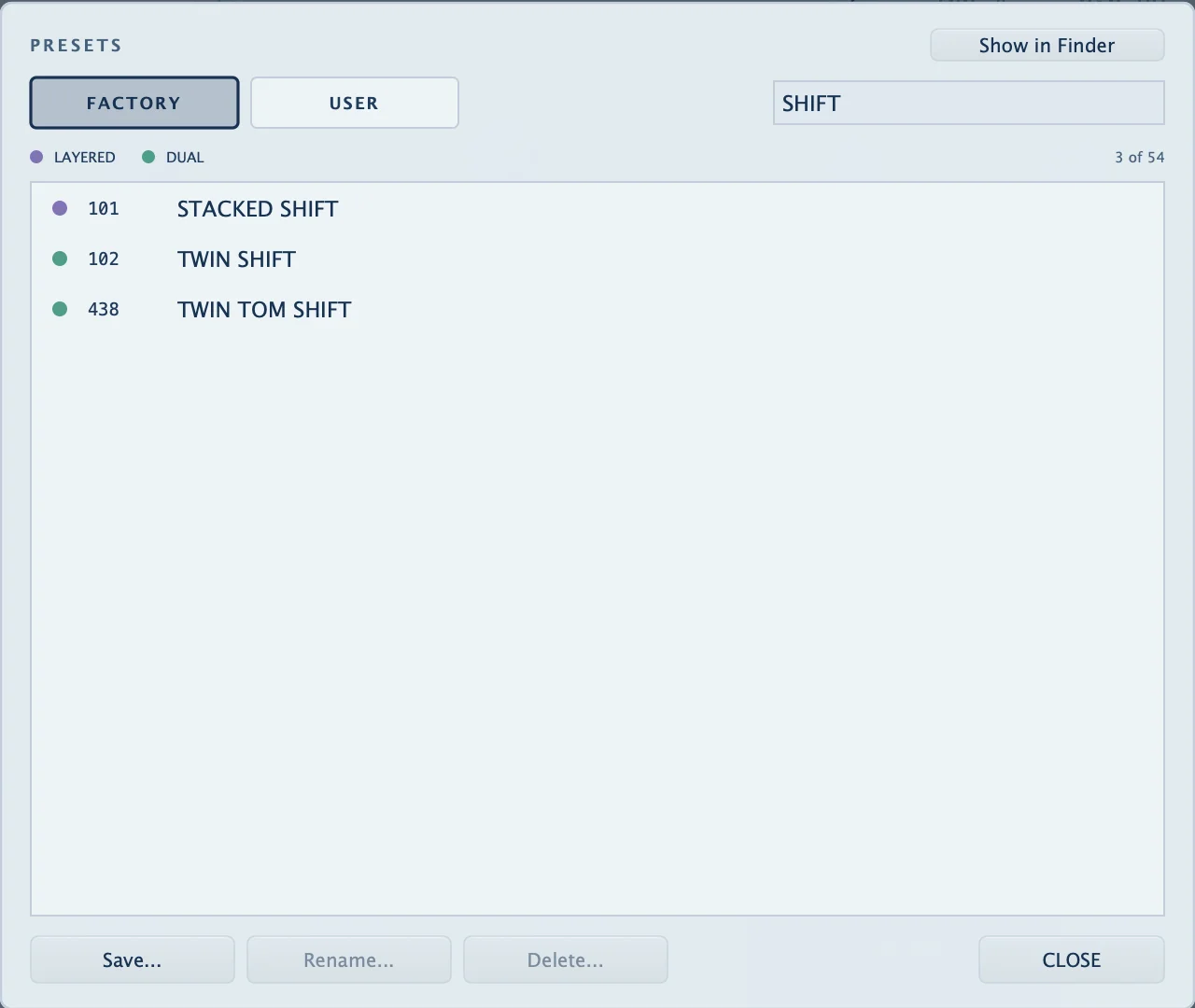
About this figure
Shown with SHIFT in the search field.Click the upper preset button to open the browser. It initially opens on FACTORY.
- FACTORY contains
DEFAULTat the top (initial settings, LAYERED) and 53 supplied presets (35 LAYERED, 18 DUAL). USER contains your saved presets. DEFAULTrestores all sound settings to their initial values. MASTER MIX, MASTER OUT and performance switches remain unchanged, as with other presets.- Search matches names and numbers without case sensitivity.
- Click the LAYERED or DUAL legend to filter by algorithm; click again to clear it. The filter persists across tabs. Reopening the browser clears both search and filter. A count such as
3 of 54on the right shows visible items and total items. - Click an item to apply it immediately while keeping the browser open. ↑/↓ and PgUp/PgDn also load each selection immediately.
- Close with CLOSE, Esc, Return or a click outside the card.
Preset names in the display #
| Indicators | Meaning |
|---|---|
160 BLACK ACE |
Factory preset number and name. |
After a name: * |
Settings have changed since loading. |
After a name: (missing) |
The loaded user preset file is missing. |
DEFAULT |
Initial settings preset: the state of a newly opened instance. |
-- NO PRESET -- |
No preset is loaded. Also shown after switching algorithms manually. |
* appears when sound settings, Bind names or L/R links change. It does not track performance controls such as MASTER MIX, POWER or SUSTAIN, or values moved by modulation.
Previous and next #
The upper ◀/▶ buttons ignore search and filters. With a user preset loaded, they follow the USER list; otherwise they follow the complete FACTORY list, starting with DEFAULT and continuing in number order, stopping at either end. With no preset loaded, ▶ selects the first item and ◀ the last.
Save, rename and delete #
- Save…: choose a name and save a user preset. If a user preset is loaded, its name is prefilled. Existing names, ignoring case, prompt for overwrite confirmation. A blank name is not saved. Saving switches to USER, selects the saved item and displays
saved. - Saving an edited factory preset creates a new user preset. The factory original stays unchanged.
- Rename…·Delete…: enabled when an item is selected in USER. Names cannot duplicate another preset. Delete… moves the file to macOS Trash, allowing recovery. Deleting the currently loaded preset removes its displayed name but leaves the sound unchanged.
In naming and confirmation dialogs, Return confirms and Esc cancels.
Presets versus DAW projects #
A preset stores sound settings for reuse in other songs. A DAW project also saves the working state of that instance.
| Setting | User preset | DAW project |
|---|---|---|
| Algorithm, Pitch, Delay, Feedback, left/right Mix and DETECT. | Saved | Saved |
| Bind connections, amounts, values, names and polarity. | Saved | Saved |
| LFO waveform, DEPTH, RATE, PHASE, BI/UNI and SYNC settings. | Saved | Saved |
| DLY SYNC and note selections. | Saved | Saved |
| Input/output levels, TRIM and L/R links. | Saved | Saved |
| MASTER MIX / MASTER OUT | Not saved | Saved |
| POWER / BYPASS / SUSTAIN | Not saved | Saved |
| PARAMETER BIND and LFO section switches; RETRIG. | Not saved | Saved |
Window size, last preset name and * |
Not saved | Saved |
| CABLES visibility. | Not saved | Not saved |
| The event of pressing a trigger button. | Not saved | Not saved |
Changing presets preserves MASTER MIX, MASTER OUT and the performance switches above. If a different preset still gives only dry sound, check BYPASS and MASTER MIX.
Loading a factory preset disables LFO and delay tempo sync and resets LFO PHASE (0), BI, division (1/4), grid and OFFSET (1.00×), input/output TRIM (0 dB) and L/R links (off). IN/OUT L/R take the preset’s saved values (chapter 8). Delay note selections remain. Save a user preset to recall these additional settings too.
Backup and transfer #
Use the browser’s Show in Finder to open the user preset folder, creating it first if needed.
~/Library/Application Support/CatSiesta/Purlshift/User/
User preset files use the extension .catpreset. AU and VST3 share the same folder. Back up the files or copy them to the same folder on another computer. After adding files in Finder, reopen the browser or select USER again to refresh the list.
- List names are stored inside the files. Renaming a file in Finder does not change its displayed name.
- Files duplicated in Finder appear in the list as
Name (2). - Korean names appear unchanged in the list, but use Latin filenames such as
Preset-2.catpreset. - Files modified in a text editor may be treated as corrupt and show
LOAD FAILED.
10
Troubleshooting #
Find by symptom
| Symptom | Check first |
|---|---|
| Only dry sound is audible. | POWER, BYPASS, MASTER MIX, left/right MIX. |
| The same sound repeats without responding to new input. | SUSTAIN |
| The LFO is connected but nothing moves. | LEDs beside PARAMETER BIND/LFO, WAVE selection Turned Off, DEPTH/RATE, EDIT BASE and TO, and a trigger for one-shot waveforms. |
| The sound keeps changing after hiding cables. | CABLES changes visibility only; disconnect or disable PARAMETER BIND. |
| Turning Bind has no effect. | EDIT SOURCE/TARGET, difference between BASE and TO, PARAMETER BIND LED. |
| A cable connection cannot be made. | CABLES enabled, drag from the colored ring rather than the knob body, 12-connection limit. |
| A delay note cannot be selected. | DLY SYNC enabled, note length within 1,000 ms at the current tempo. |
| After slowing the tempo, the delay is shorter than the note value. | 1,000 ms limit and the chip’s ceiling indicator. |
| MASTER MIX and MASTER OUT stay unchanged when changing presets. | These two values are not saved in presets. |
| Loading a factory preset changes TRIM, IN/OUT, L/R links and sync. | Normal factory-load behavior (IN/OUT use preset values); save a user preset. |
| The preset name disappears after changing algorithms. | Sound settings remain; the name display changes to -- NO PRESET -- |
The preset name has a trailing *. |
Indicates settings changed since loading. |
DAW automation for Bypass disables the plug-in. |
Bypass controls POWER; the BYPASS button uses Dry |
| Renaming a file in Finder does not change its list name. | The list name is stored inside the file. |
LOAD FAILED appears and the preset will not open. |
The file is corrupt or has been edited manually. |
The display shows ENGINE NOT LOADED and no sound is produced. |
Engine resources could not be read; check the installation. |
| Stereo widening is inaudible on a mono track. | Use mono→stereo or stereo configuration instead of mono output. |
| Sound disappears before IN/OUT reach −48 dB, or one output is silent. | Original level rules (silence occurs before −48 dB), factory preset IN/OUT settings; use TRIM for precise control. |
| Left/right MIX at 0% sounds slightly different from the dry input. | Left/right MIX uses the hardware’s dry path. For untouched input, use MASTER MIX 0% or BYPASS. |
11
Quick reference #
Control ranges #
| Controls | Range | Initial value | Original hardware |
|---|---|---|---|
| PITCH L / R | −2400 to +1200 c, in 1 c steps. | 9 c / −9 c | Yes |
| DELAY L / R | 0–1,000 ms, in 1 ms steps. | 12 ms / 24 ms | Yes (Dual: 0–500 ms). |
| FEEDBACK L / R | 0~100% | 0% | Yes |
| MIX L / R | 0~100% | 100% | Yes |
| LOW FREQ / HIGH FREQ / SOURCE | 0~47 / 0~4 / 0~100 | 12 / 2 / 94 | Yes (LOW FREQ: 0–46). |
| SUSTAIN | Off / On | Off | Yes |
| DLY SYNC | Off / On, 13 note values. | Off | None |
| IN·OUT L / R | −48 to +48 dB, original level rules (silence before −48 dB). | 0 dB | Yes |
| TRIM IN / OUT | −24 to +24 dB, in 1 dB steps. | 0 dB | None |
| MASTER MIX | 0–100%, in 1% steps. | 100% | None |
| MASTER OUT | −24.0 to +12.0 dB, in 0.1 dB steps. | 0.0 dB | None |
| BIND 1~4 | 0.00~100.00% (± uses −100.00 to +100.00%). |
0.00% | Yes |
| LFO DEPTH | 0~100% | 100% | Yes |
| LFO RATE | 0.00~20.00 Hz | 1.00 Hz | Yes |
| LFO PHASE | 0~359 deg | 0 deg | None |
| LFO OFFSET | 0.50~2.00× | 1.00× | None |
| Algorithms | Layered / Dual | Layered | Yes |
Mouse and keyboard #
| Target | Action | Result |
|---|---|---|
| Knob | Drag · Shift + drag · wheel | Adjust · fine adjustment · adjust. |
| Knob | Double-click | Reset to initial value (PITCH/DELAY: 0; Bind: neutral). |
| Knob · value number | Right-click · double-click | Enter a value |
| Bind name | Double-click | Rename. |
| Colored ring · OUT | Drag to a knob | Connect. |
| TRIG IN | Drag to a Bind ▶ button (or from a Bind ring to TRIG IN). | Connect a trigger. |
| Cable · target plug | Click | Disconnect. |
| Bind ▶ | Click · right-click | Trigger · disconnect trigger. |
| Preset browser | ↑↓ · PgUp/PgDn | Move between items and apply immediately. |
| Preset browser | Esc · Return · click outside | Close |
| Bottom-right window corner | Drag | Resize the window. |
| Logo | Click | Open the information window (close with X, Esc or a click outside). Its Open folder… button opens the license folder in Finder, creating it if needed. With no registered address, a large button and an instruction to add both files and restart the DAW are shown; after registration, a small link appears. |
DAW automation names #
| Interface | Automation name |
|---|---|
| POWER | Bypass |
| BYPASS | Dry |
| TRIM IN / OUT | Input Level / Output Level |
| IN·OUT L / R | In L · In R · Out L · Out R |
| PARAMETER BIND switch / LFO switch | Modulation / LFO |
| BIND 1~4 | Bind 1 ~ Bind 4 |
| LFO RATE | LFO Rate (cHz, 0~2000) |
| Trigger | LFO Trigger |
| Connection modulation amount. | Slot 1 Amount ~ Slot 12 Amount |
Algorithm (Layered/Dual), Bind polarity and connection SOURCE/TARGET cannot be automated.